I Was Tired of My Slow Boot Times: Here’s How I Optimized My Startup and Saved My Morning

For a long time, one of the most frustrating parts of my day was waiting for my computer to start. Every morning, I would press the power button, expecting to get to work quickly, only to spend several minutes watching loading screens and waiting for applications to become responsive. What should have been a simple startup process felt unnecessarily slow and inefficient.
After dealing with these delays for months, I finally decided to find out what was causing the problem and look for a powerful PC cleaner to improve my computer’s performance. The changes I made not only reduced my boot time but also made my system feel faster throughout the day.
The Growing Frustration of Slow Startup Times
Like many computer users, I regularly install software for work, entertainment, and productivity. Over time, I noticed that my PC was taking longer and longer to boot. Initially, the delay was only a few extra seconds. Eventually, it became several minutes before my desktop was fully usable.
The most frustrating part was that I couldn’t immediately identify the cause. My computer had decent hardware, sufficient storage space, and no obvious signs of major problems. Still, every startup felt slower than it should have been.
Investigating the Problem
I began by looking at the programs that launched automatically when Windows started. To my surprise, there were far more startup applications than I expected. Many of them were programs I rarely used, yet they were loading every time I turned on my computer.
Each application consumed system resources during startup, increasing the time required for Windows to become fully operational. Some software had added itself to the startup process without me even realizing it. At that point, it became clear that startup optimization could make a significant difference.
Why Startup Optimization Matters
When a computer boots, Windows loads essential system services along with any applications configured to start automatically. The more programs that launch during startup, the more work the system must perform before becoming responsive. Common issues caused by excessive startup items include:
- Longer boot times
- Delayed desktop responsiveness
- Increased memory usage
- Higher CPU activity
- Reduced overall system efficiency
Managing startup programs can help improve performance without requiring any hardware upgrades.
Looking for a Simpler Solution
While Windows provides basic startup management tools, I wanted something that offered a more complete approach to system optimization.
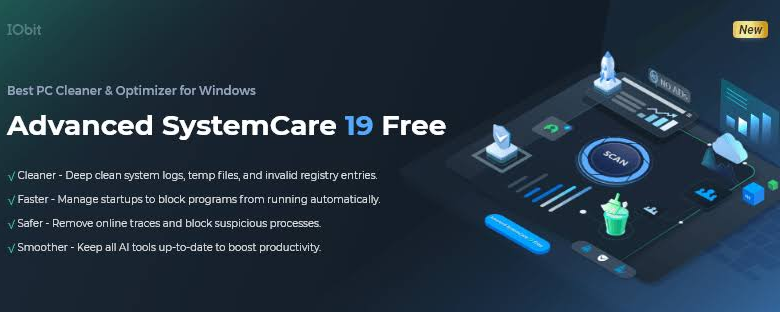
That’s when I decided to try Advanced SystemCare, a popular Windows optimizer and PC cleaner designed to help users improve system performance and maintain their computers more efficiently.
One of the features that immediately caught my attention was its startup optimization functionality.
How I Optimize Startup Programs with Advanced SystemCare
I started using Advanced SystemCare to manage these startup items, and the process was much easier than adjusting everything manually through Windows.
Step 1: Open Advanced SystemCare
I download and launch Advanced SystemCare and go to the “Speed Up” section. Here, I can access several performance optimization tools, including “Startup Optimizer”.
Step 2: Open Startup Optimizer
I click “Startup Optimizer” to see a complete list of programs and services that start automatically with Windows. The software typically categorizes startup items, making it easier to identify which applications may be affecting boot speed.
Step 3: Review Startup Programs
Before disabling anything, I review the list carefully. I usually look for:
* Applications I rarely use
* Software update services
* Unnecessary launchers
* Background utilities
* Programs installed with other software
I avoid disabling important Windows services or security software.
Step 4: Disable Unnecessary Startup Items
For programs I don’t need immediately after booting, I simply disable their automatic startup. This helps reduce:
* Boot time
* Background CPU usage
* Memory consumption
* Unnecessary system load
The applications remain installed and can still be opened manually whenever I need them.
Step 5: Optimize Background Services
Advanced SystemCare also helps identify unnecessary background services that may affect performance. I review the recommendations and disable only the services that are safe to turn off.
Step 6: Use Turbo Boost for Extra Performance
After optimizing startup items, I sometimes enable “Turbo Boost” and switch to Work Mood. This feature temporarily stops non-essential background processes and frees additional system resources, making my PC feel even more responsive.
Step 7: Maintain Startup Performance Regularly
Whenever I install new software, I occasionally check Startup Optimizer again because many applications automatically add themselves to the startup list. Regular maintenance helps prevent startup clutter from building up over time.
The Difference After Optimization
The improvement became noticeable almost immediately. After reducing unnecessary startup items, my computer reached the desktop more quickly and became responsive sooner than before.
Applications opened faster, and I no longer had to wait as long before beginning my daily tasks. While startup speed can vary depending on hardware and system configuration, optimizing unnecessary background activity made a meaningful difference in my experience.
Additional Benefits I Noticed
Startup optimization wasn’t the only improvement.
As I continued exploring this Windows cleaner, I discovered additional tools designed to help maintain overall system performance.
These included features for:
- Auto system care with AI
- Removing temporary files
- Cleaning unnecessary system data
- Managing privacy traces
- Optimizing system settings
- Monitoring performance
Together, these tools helped create a cleaner and more organized computing environment.
Pros of Using a PC Cleaner
During my experience, I found several advantages to using a dedicated optimization tool.
Easier Maintenance
Many routine cleanup tasks can be managed from a single interface.
Better Startup Management
Identifying resource-heavy startup programs becomes much simpler.
Cleaner Storage
Temporary files and unnecessary data can be removed efficiently.
Improved Organization
Keeping the system organized makes long-term maintenance easier.
Potential Considerations
While optimization tools can be helpful, it’s important to approach system maintenance carefully.
Not Every Program Should Be Disabled
Some startup items are essential for security or hardware functionality.
Results May Vary
Performance improvements depend on individual system conditions and existing software configurations.
Regular Maintenance Still Matters
Optimization works best when combined with good computing habits and regular updates.
Final Thoughts
Slow startup times may seem like a minor inconvenience, but they can become frustrating when experienced every day. In my case, a growing number of startup applications gradually reduced my computer’s responsiveness and wasted valuable time each morning.
By reviewing and optimizing startup programs with Advanced SystemCare, an easy-to-use but powerful PC cleaner, I was able to reduce unnecessary delays and create a smoother startup experience.
The process reminded me that system performance isn’t always about hardware upgrades. Sometimes, a few smart optimizations can make a noticeable difference and help your computer feel faster, cleaner, and more efficient.