Scale Your Global Outreach: How to Use Vidnoz AI for Multi-Language Business Videos

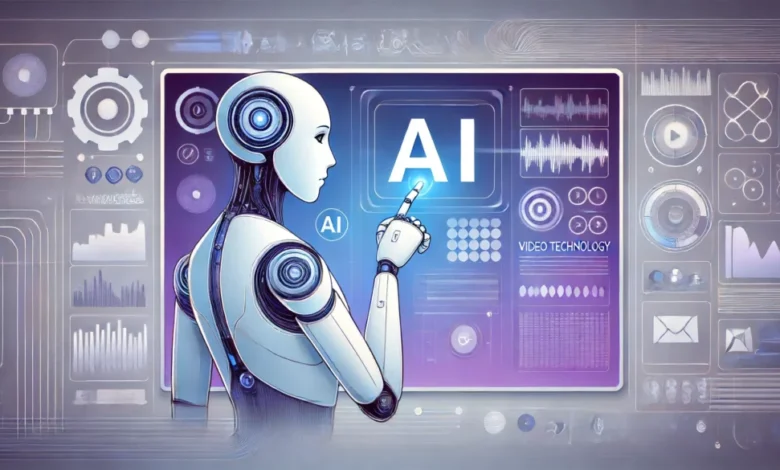
Marketing and HR teams used to need big budgets, local video crews, and lengthy production schedules to reach customers around the world. But there is no need for that anymore, thanks to Vidnoz AI.
Vidnoz AI enables you to auto-produce edited, multilingual business videos from scratch in minutes without editing expertise or studio equipment. Its video templates, realistic AI portraits, and expansive voice library allow you to practically scale global video outreach while controlling costs—all backed by its ISO/IEC 27001:2022 certification for Information Security Management.
Why Vidnoz AI Helps You Create Videos For Global Outreach
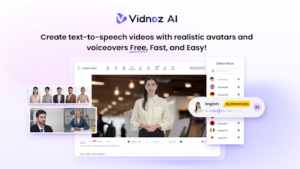
Vidnoz AI is an AI video generator built in the browser that allows you to auto-produce spokesperson videos from scratch based on text, images, or existing video clips. Most of the production work is automated, so you simply provide copy and branding, while the engine automatically creates layout, editing, transitions, and AI voices.
It’s ideal for remote teams and multinational marketing initiatives because you can render videos in over 140 languages. Vidnoz uses text-to-speech to provide AI voice data but also lets you translate video scripts and projects without losing natural-sounding voices and lip sync.
That makes it a great tool for sales presentations, employee onboarding, employee training, software demonstrations, and explainer videos you need to repurpose for customers or employees in multiple markets.
The Best Collection of Templates
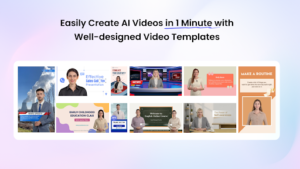
Vidnoz has approximately 2,800 video templates that cover a wide variety of content scenarios like product tutorials, feature demos, sales pitches, company news, video blogs, email sequences, social media updates, course videos, certification exams, and explainer videos.
Every template has placeholders for text, images, voice-overs, layouts, scene transitions, subtitles, and subtitle styles already designed, so you just need to replace demo content with your own copy and create.
AI Portraits And Avatars
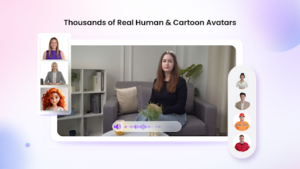
The platform currently includes more than 1,900 AI-generated avatars and animated talking portraits for different industries, professions, and personas. Options include news anchors, virtual assistants, teachers, lawyers, doctors, financial analysts, project managers, development teams, pizza delivery, pizza shops, and thousands more.
You can also upload a headshot photo to create your own custom talking avatar for things like CEO messaging or consistent presenting brand spokes characters that won’t require filming repeatedly.
AI Voices
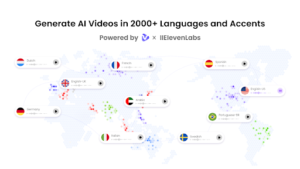
Included is access to roughly 2000 AI voices in approximately 140+ languages and global accents using text-to-speech engines like Google TTS, Microsoft, ElevenLabs, and more. Voices include multiple speaking tones, pitches, and emotions, but automated lip sync applies accurate mouth movements that match speech patterns, pitch, and audio speed of the video script.
Customers can use Vidnoz for free when signing up to create HD video projects. The free account allows you to browse video templates, produce videos from text, and download video projects. For marketing teams that want to validate messaging, ad formats, or product demo flows, it’s perfect for producing low-risk test videos that describe entire products or services.
Free to Use
A complimentary version of Vidnoz AI is available, enabling cost-free, high-quality video production. It provides 30 daily credits and includes premium features such as Avatar Lite, an Online Video Editor, an AI Voice Changer, and an AI Headshot Generator.
AI Video Wizard
No editing experience required! Vidnoz AI enables users to generate engaging presentation videos with a simple text prompt or any source material. No professional help or complex editing skills required.
How to Use Vidnoz AI to Create Multi-Language Videos?
Do you wonder how easy it is to use Vidnoz AI and create multilingual videos? Take a look at these steps.
- Create an account on Vidnoz AI Video Generator and select a template.
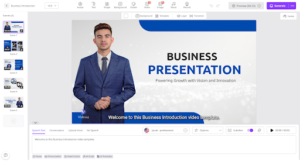
Visit vidnoz.ai and click the signup button to create an account. When you arrive at your dashboard, navigate to the template library and choose a template that fits your needs. Popular picks are “Product Video”, “Sales Pitch”, “Course Video”, “Employee Training” or “Employee Onboarding”.
2.Pick an avatar portrait or photo.
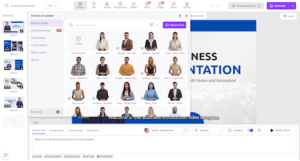
Select an avatar if you want a single person presenting. If you want two people (i.e., an interview format), select the dual avatar video template. You can use this for sales calls, support presentations, or problem-solving videos.
Upload a portrait to create a personalized avatar. Creating an avatar with your brand colors and logo embedded in the hairstyle is helpful if you have a presenter who needs to appear frequently but can’t be filmed each time.
3.Enter the script copy and select AI voice.
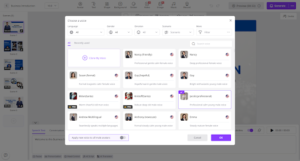
Input your script directly, or use Vidnoz AI to generate one based on your prompt, language, and style. Next, select an AI voice from the library tailored to your language, gender, and emotion. Finally, use the bottom preview to ensure natural voice and pacing before finalizing.
4.Customize fonts and colors, and add logos.
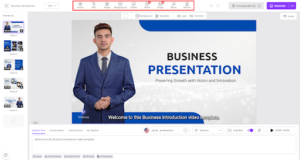
Customize text areas with your corporate font and colors, and add your logo to the top right or left side of the video. Pull in images or icons from Vidnoz’s free stock video library, powered by Freepik and Unsplash. You can also upload images or videos to include.
5.Generate the video.
Click generate video, and Vidnoz will process your video. When complete, you can preview the video. Make adjustments as needed.
Once satisfied, click “Download” to download your video.
Final Words
By translating content into foreign languages, you can reach new customers who only speak that language or speak it primarily. Vidnoz AI can help you with creating such multilingual videos. Go ahead and visit the website to start using Vidnoz AI today.